
Review your choices
Open “View selected apps” to check and change your selection.
Before handing over your phone, make your choices: protect your apps or create a personal Space with the apps you have chosen.
For Android 7.0 and later. Availability depends on publication on Google Play. Download information
One PIN, four digits
A Space for every child
Your choices stay on your phone
Two ways to use BimbiLock
Sometimes you only need to protect a few apps. Other times, you want to prepare a Space with the apps you have chosen for play.
Your phone, with an extra layer of protection
Select the apps to protect. When someone tries to open one, BimbiLock asks for your four digits.
Protected app
Enter the PIN to open the app.
Illustrative example of this feature
A world to choose together
Create a profile for each child and choose the allowed apps. Inside their Space, they can open these apps without the parent’s PIN. The PIN is required to leave the Space.
Interactive example
Parent PIN required to exit
Example profiles and apps. This website does not lock your phone.
Protection requires Accessibility to be enabled. Recognised browsers and Google Play can also open without a PIN while a Space is active. BimbiLock does not filter their content: configure available controls and choose apps and websites suitable for your child.
The design in version 1.4.0
Home, PIN and settings share the same style: light blue, large buttons and easy-to-find controls.
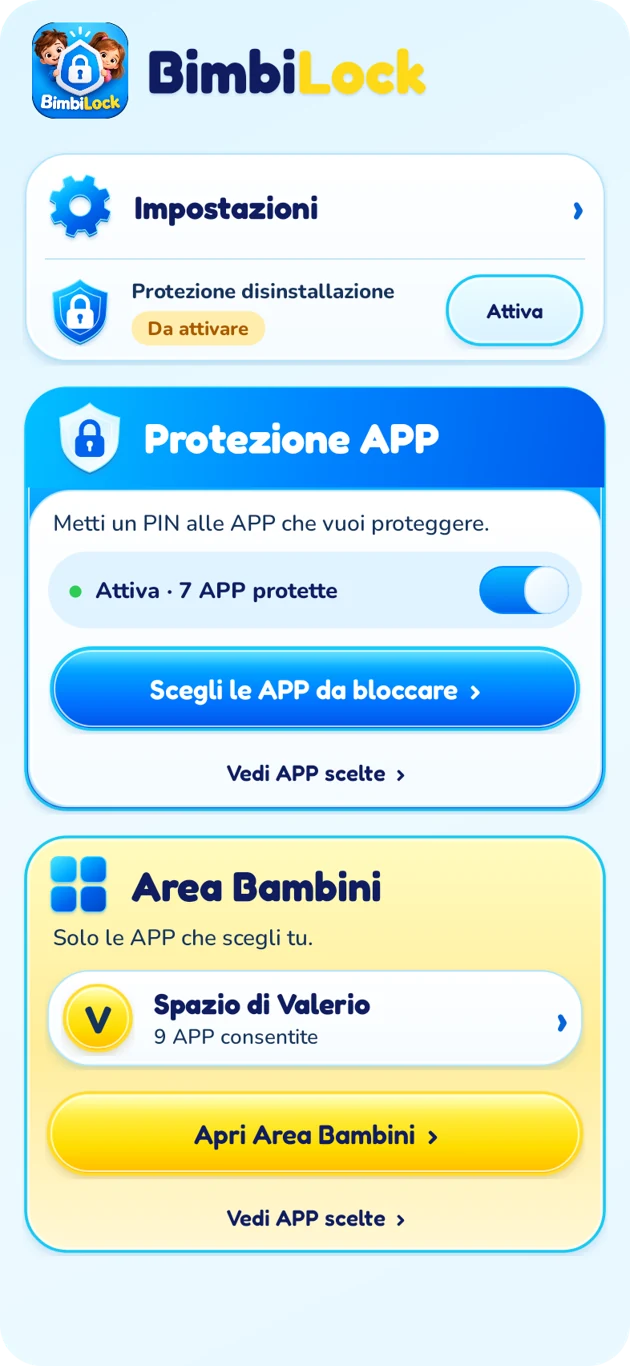
Protection and Children’s Area, right in front of you.
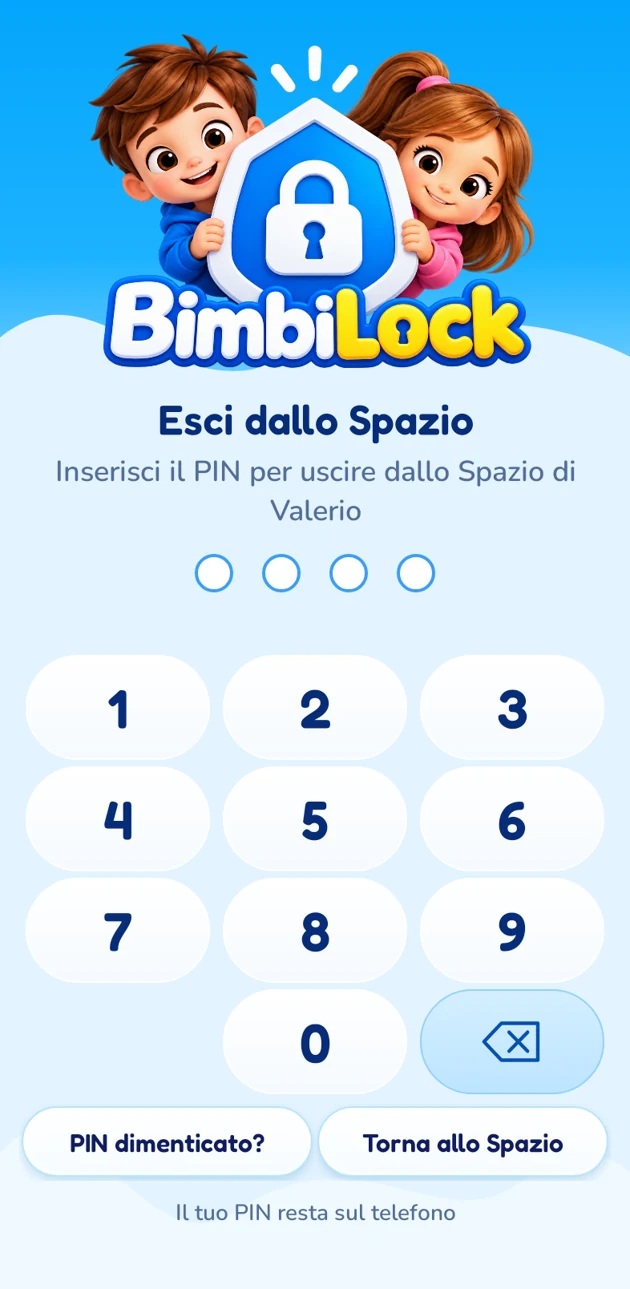
A fixed keypad and a way back to the Space, within reach.
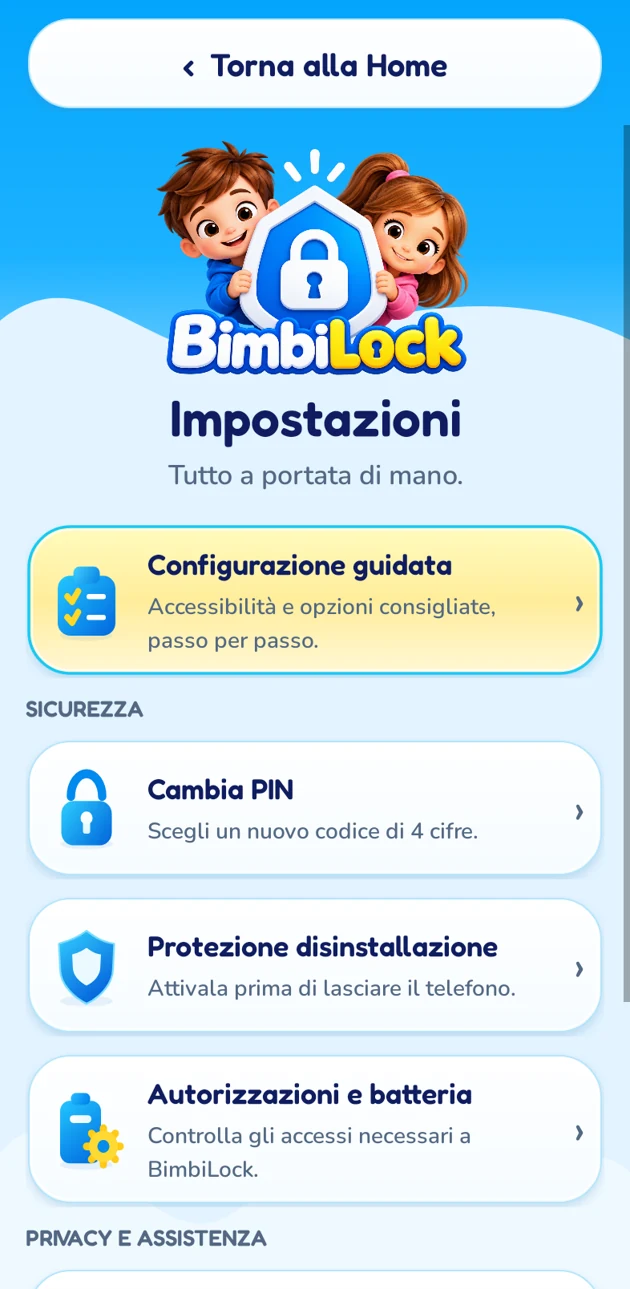
Help, permissions and a large “Back to Home” button.
Italian previews generated from the native 1.4.0 interface with sample data, not photos of a phone. Current visuals and steps may differ.
Before handing over your phone
Choose four digits and confirm them. They are your key to the parent area.
Enable Accessibility in Android settings and check the battery guidance.
Decide what to protect or create a Space with allowed apps. Then test how it works.
Designed for everyday use
The important features stay close at hand, without searching through settings every time.
Updates and languagesOpen “View selected apps” to check and change your selection.
Add an HTTPS link from the parent area and find it in the grid.
An extra option you enable yourself. Its behaviour depends on Android.
After five failed attempts, use supported biometrics or a reset with a waiting period and confirmation.
Languages and updates
Version 1.4.17, being prepared, adds Arabic alongside Italian and English for the interface and privacy notice. In that version, open Settings → Language and choose Automatic, Italiano, English or العربية. Translations work offline and the manual choice is saved. Check Google Play for update availability: this page does not announce its release.
The version being prepared includes Arabic screens, dialogs and privacy information, with a right-to-left layout.
Changing language does not change your PIN, children’s names, Spaces or selected apps.
Advertisements with limited frequency, when available and permitted. Protection also works without advertisements.
Take a look
The original videos show the Italian interface of earlier versions. Current screens and steps may differ: see the updated guide.
The BimbiLock promo
The phone changes hands. Your choices stay in place.
Open the promo full screenSetup, on video
Follow the setup on a phone: PIN, permissions, app selection and uninstall protection.
Open the how-it-works videoVideo 1 of 2 · The promo
Four digits. On your phone.
Your PIN, selections and Space names stay on the device. No account is needed. Online configuration, any ads and external websites involve separate data processing, explained in the privacy notice.
Read the updated privacy noticeStraightforward answers
Features, permissions and limits: what to know before you start.
After you accept the dedicated notice, newly installed apps that can be launched and are not system apps are added to the Space that is active at installation. You can review and change the selection from the parent area. Apps already installed are not added retroactively.
Version 1.4.17, being prepared, adds Arabic alongside Italian and English for the interface and privacy notice. In that version, open Settings → Language and choose Automatic, Italiano, English or العربية. Translations work offline and the manual choice is saved. Check Google Play for update availability: this page does not announce its release.
The translation covers screens and dialogs created by BimbiLock. Google consent forms and Android system windows use the languages offered by their respective services: the Google European consent form is not currently available in Arabic.
App Protection asks for the PIN when someone opens an app you have locked. In Children’s Area, you create a personal Space with the apps you choose for that child. While a Space is active, its allowed apps take priority over ordinary locks. Recognised browsers and Google Play can also open without a PIN, even if they are not selected or are locked under ordinary protection. The parent’s PIN is required to leave the Space.
BimbiLock is free, with no account or subscription. Supported versions may display advertisements with limited frequency, depending on availability and privacy choices. Spaces do not show BimbiLock advertisements. Protection also works without a connection or advertisements. External apps and websites may have their own advertisements.
BimbiLock requires Android 7.0 or later. No brands are excluded, but permissions, battery saving and Android customisations can affect how it works. The app’s guide includes instructions for several manufacturers. Declared compatibility does not mean every model has been tested. This version is not an iPhone app.
Yes. Each Space has a name and a selection of allowed apps. From Children’s Area, choose who is using the phone, change the apps and review the current selection. Names and preferences stay on the device. Children do not need accounts.
Yes. From the parent area, edit a Space, open app selection and tap “+ Web”. Enter a name and an HTTPS address, add the game and save. The game opens in the internal web view. Some sites that use external sign-ins, the camera, microphone or links to other domains may not work. Browser saves are not imported, and sites on the same domain share the app’s web storage.
It identifies the foreground app so BimbiLock can apply a lock or the Space’s rules. BimbiLock does not read messages or record the screen. The parent must grant permission in Android settings. Usage access is optional and is used only to sort “Most used apps”.
After five consecutive failed attempts, “Forgot PIN?” appears. When available, recovery uses Android’s biometric verification. Otherwise, you can start a reset with a five-minute wait and final confirmation: the PIN, selections and Spaces are deleted and must be set up again. Support does not know and cannot retrieve your PIN.
Uninstall protection is optional and must be enabled by the parent. It adds device administrator access and uses the PIN to protect recognised settings routes. It is not an absolute lock: safe mode, revoked permissions, a stopped service and differences between phones may bypass some protections. Always test the behaviour on your own device.
It limits app opening and access to the Space, but does not automatically filter in-app content, external ads or Android notifications. Choose age-appropriate apps, configure them first and check your phone’s notification settings.
The PIN and local app protection do not depend on a connection. Online games and services need Internet according to how they work. In the parent area, Firebase may retrieve ad configuration even when ads are disabled. See the privacy notice for details.
Get the app
Open Google Play to install BimbiLock or check for updates. The Store shows availability for your device and account.
If the listing or the Install button is not available yet, try again after Google’s review and publication. Access to test versions may require an eligible account. Need help?
A direct contact
Include your phone model, Android version and what happens. Do not send your PIN or private content.